
Setting a custom MX entry is useful if you want your email handled by another server, or if you want to setup a backup email server.
This demo assumes you've already logged into cPanel, and are starting on the home screen.
Now let's learn how to add an MX entry.
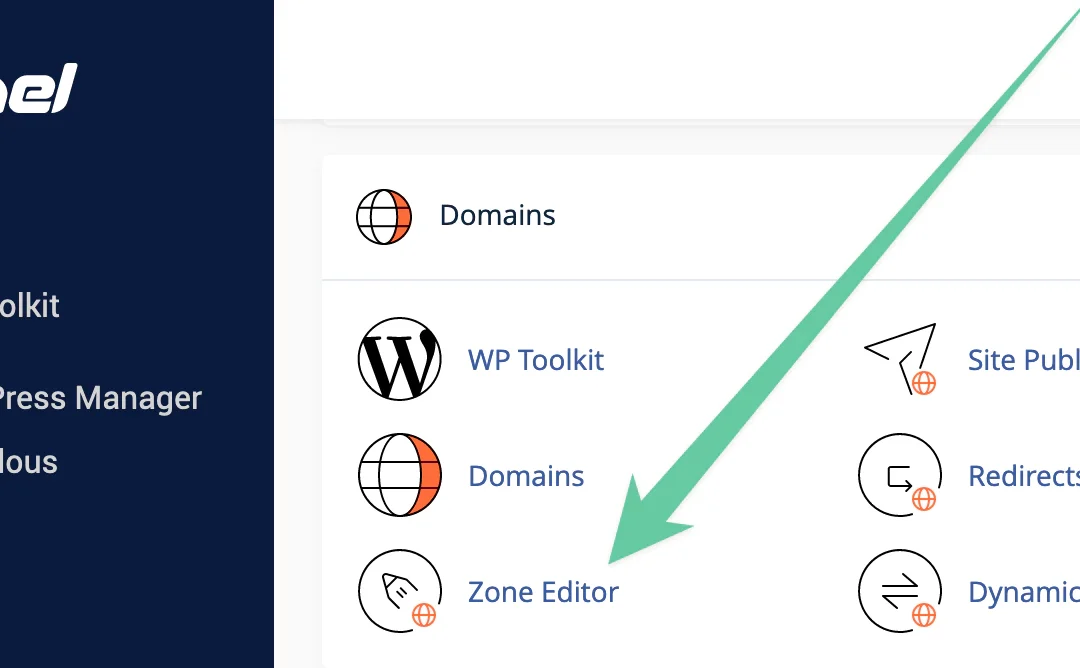
- Scroll down to the section labeled Domains;
- Click on the Zone Editor icon;
- Click the MX Entry icon located in the same row of the domain;

- Enter a priority number for the new MX record: the lower priority numbers will be tried first, followed by higher numbers.
- Then enter the new MX entry; and
- Click Add New Record.
That's it! The new MX record has been added.
So in this case, the default mybiz1234.com mail server will be tried first because it has a priority of 0...
... followed by the new email server mx1.myexchange.com, because its priority number is 1.
Side note: In the Zone Editor you can also create A Records, CNAME Records or manage existing records.
This is the end of the tutorial. You now know how to add an MX entry in cPanel.